Modules
Templates, checks and skills you add to a workspace. What a module is, what adding one does, and a first walkthrough.
What a module is
A module is a folder of files plus a short manifest: a name, a description, the file to open first, a message for the first chat, and, for some, a setup command, a button for selected text, or a check that runs on every edit. Everything a module adds to a workspace is a file you can open, edit or delete.
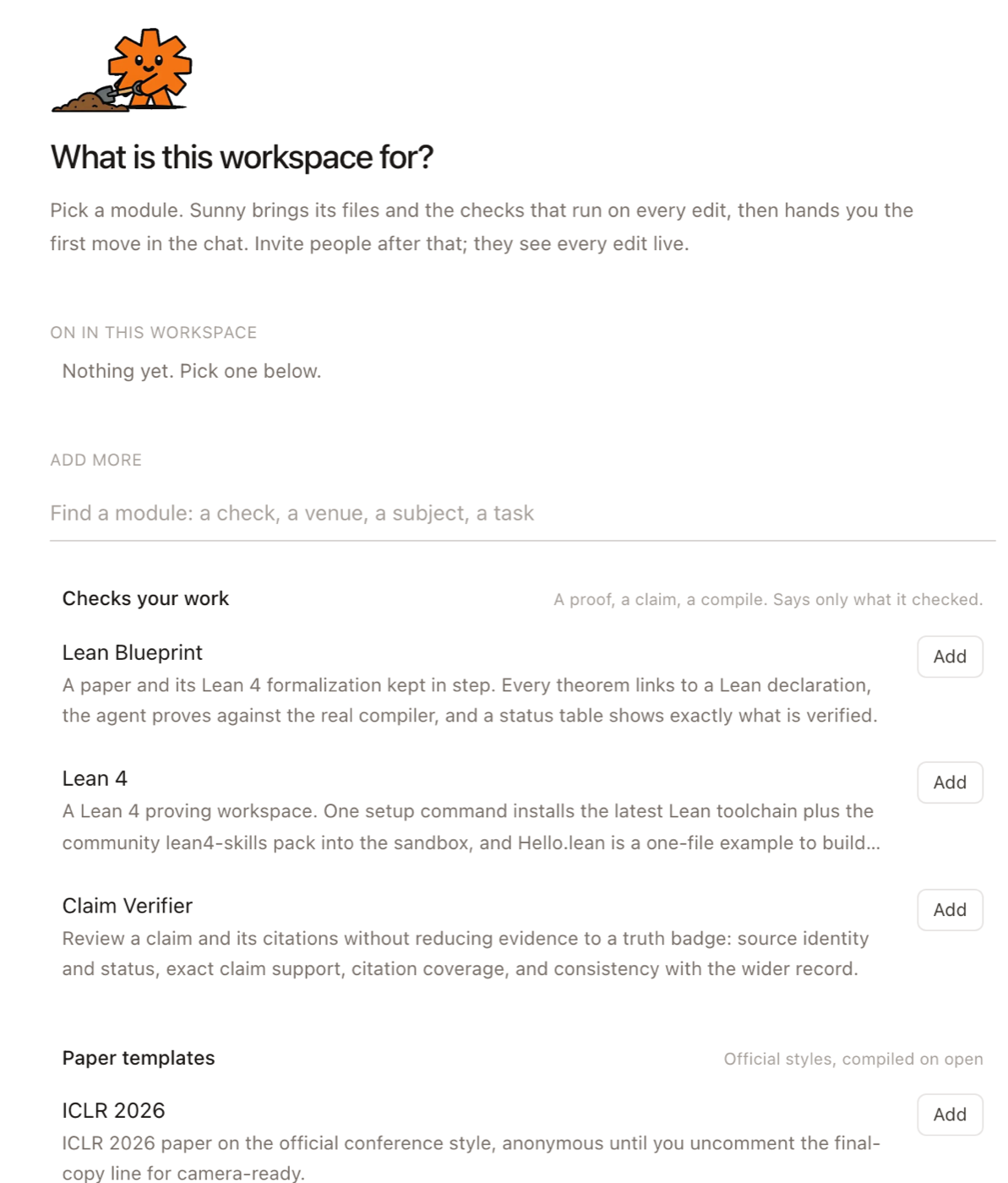
The gallery at /modules shows them in three groups:
| Group | What it is | Examples |
|---|---|---|
 Checks your work Checks your work | A verifier: a proof, a claim, a compile. It says only what it checked. | Claim Verifier, Lean Blueprint, the LaTeX compiler |
 Paper templates Paper templates | Files to start from, in the venue's official style, compiled on open. | ICLR 2026, NeurIPS, a thesis, a talk |
 Skills and assistants Skills and assistants | Something Sunny knows how to do when you ask, or does on its own when you select text. | Literature search, Formalize |
Why they are useful
A template saves the afternoon of finding the right class files and getting them to compile: the paper opens with its PDF beside it. A verifier turns "is this right?" into a button, and it reports only what it actually checked. A skill gives the agent a written method to follow, so you do not have to explain it in every chat.
What adding one does
Add a module from the gallery, or from the Modules section at the top of the sidebar, where Recommended rows are picked from the files you already have.
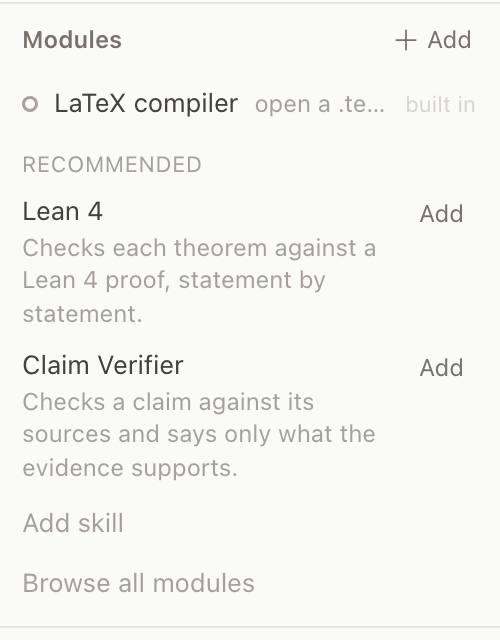
A few rows are built in: nothing to install, nothing to remove, a switch. The LaTeX compiler is one (it shows as a status chip once a .tex file exists); Daily notes is another. Turning daily notes on makes that workspace the home of your dailies and opens its three settings: date format, a custom format with a live preview, and the folder new notes go in (daily by default). The home is yours, per machine on the desktop and per account on the web, so a shared workspace can be one person's daily home without being everyone's. Turning it on somewhere else asks once before moving it. Under the folder a line says who can see it (private, shared with people, or open to a workspace or folder link). The home's root AGENTS.md gets one line starting - Daily notes: that tells every agent the folder and the file name, so "add this to today's note" lands in the right file; it follows the settings and goes when daily notes move or turn off. Cmd+Shift+D (or Today in the launcher bar, Today's note in the Cmd+K palette, File ▸ Today's Note on the desktop) opens today's note in that home, making the file first if it is not there yet; from any other workspace it takes you to the home and does the same.
- Its files land at the root of the workspace. A name that already exists gets a
-<module>suffix; nothing of yours is overwritten. - Its instructions join the agent's context, and its opening message appears in a new chat with suggested first asks.
- A setup command, when the module has one, runs in the agent's cloud sandbox, never on your Mac.
- A selected-text action, such as Verify or Formalize, appears in the toolbar over any selection. Its verdict lands as a comment thread on that selection.
- A verifier's checks run on every edit from then on.
Remove a module from the same section. Its instructions, buttons and checks go; the files it added stay, because they are yours now.
Try it in five minutes
-
Open sundial.md/new. A fresh workspace asks what it is for and shows the gallery.
-
Add ICLR 2026. The paper opens as
main.texwith the compiled PDF beside it, in the official style. -
Add Claim Verifier. Select a sentence in the paper, click Verify in the toolbar, and read the verdict in the thread that appears on it.
-
In the chat, try one of the suggested asks the module posted, then write your own.
-
Done with a check? Remove it from the Modules section. Your paper stays.
Templates work the same way on the desktop: New project, then a template.
Make your own
The smallest module is one file: skills/<name>/SKILL.md, a short note that tells Sunny what to do and when. Making one is a click.
- In the Modules section, click New module and give it a name. Sundial writes the file and opens it.
- Edit it. The first two lines (
name,description) are what the list and Sunny see; the rest is the steps to follow. - Share it: the row's ⋮ → Share opens the same share window as any file or folder, scoped to that folder. Send the link to a person or paste it to an agent.
Whoever opens the link sees the module in their Modules section with one button, Add to my workspace. It copies the folder into a workspace of theirs; a name already taken there gets a -copy suffix, and nothing is ever overwritten. An agent that gets the link reads the SKILL.md and follows it. On the desktop app, the same section lists the skills in your folder, New module writes one, and + Add copies a gallery module's files in with no sign-in.
To add a skill someone published on GitHub, use Add skill in the same section. To put a module in the gallery at /modules, it becomes a folder in the Sundial repository: a short manifest and the files it seeds, opened as a pull request. The Module SDK is the reference, written for people and for agents: the fields, what each one does to a workspace and to the agent, and how a module is tested and shipped.